Step 1
Open the portal and click “Install desktop app”
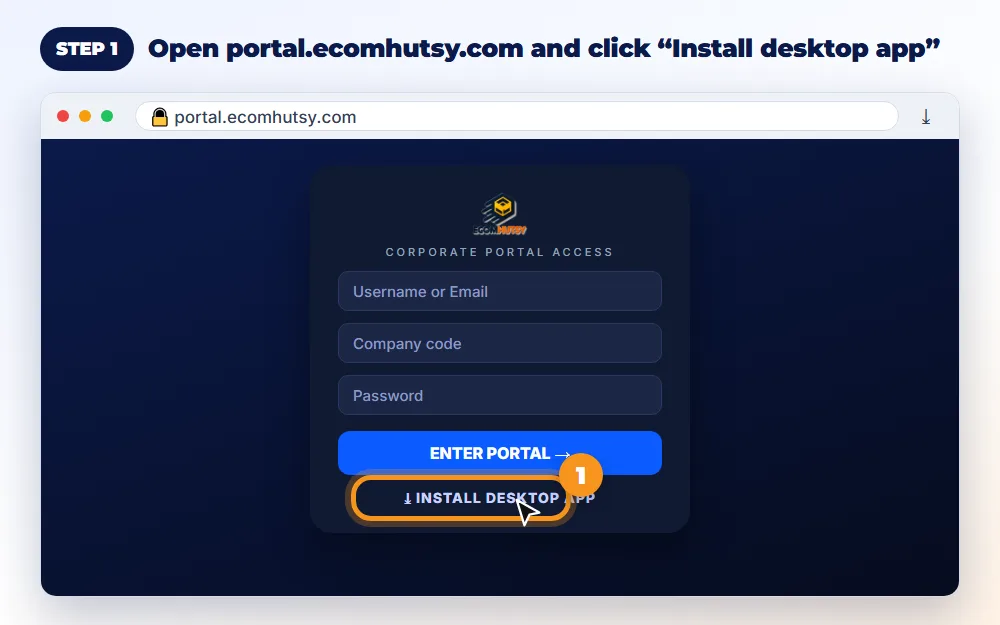
Go to portal.ecomhutsy.com on your Windows computer. Under the login box, click Install desktop app. The download starts (about 112 MB).
Windows 10 and 11 · about 2 minutes · no admin rights needed. Follow the six steps below; the pictures show exactly where to click.
Go to portal.ecomhutsy.com on your Windows computer. Under the login box, click Install desktop app. The download starts (about 112 MB).
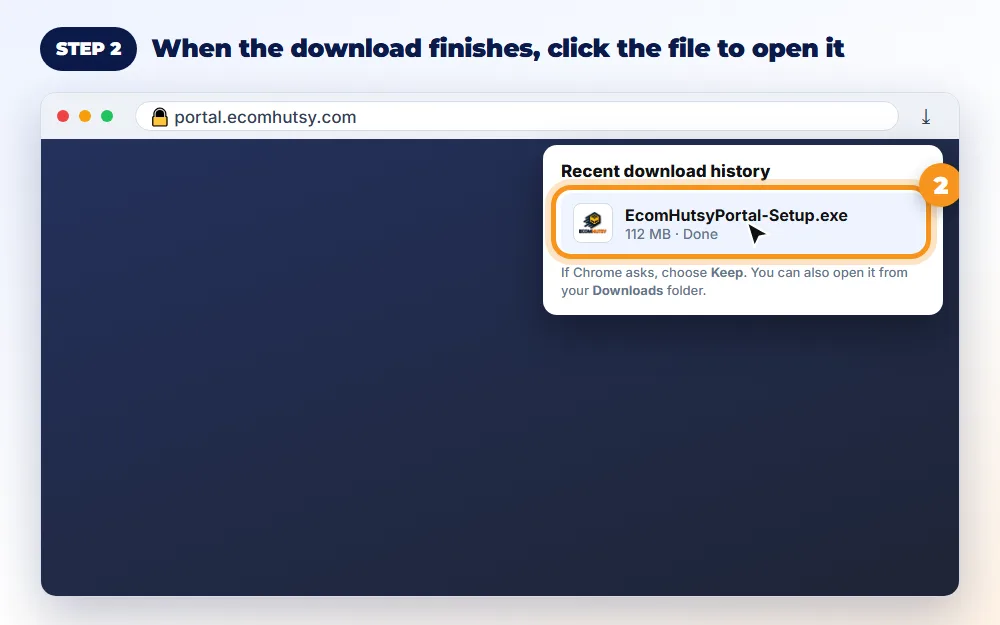
When it finishes, click EcomHutsyPortal-Setup.exe in your browser's downloads (or open it from your Downloads folder). If Chrome asks, choose Keep.
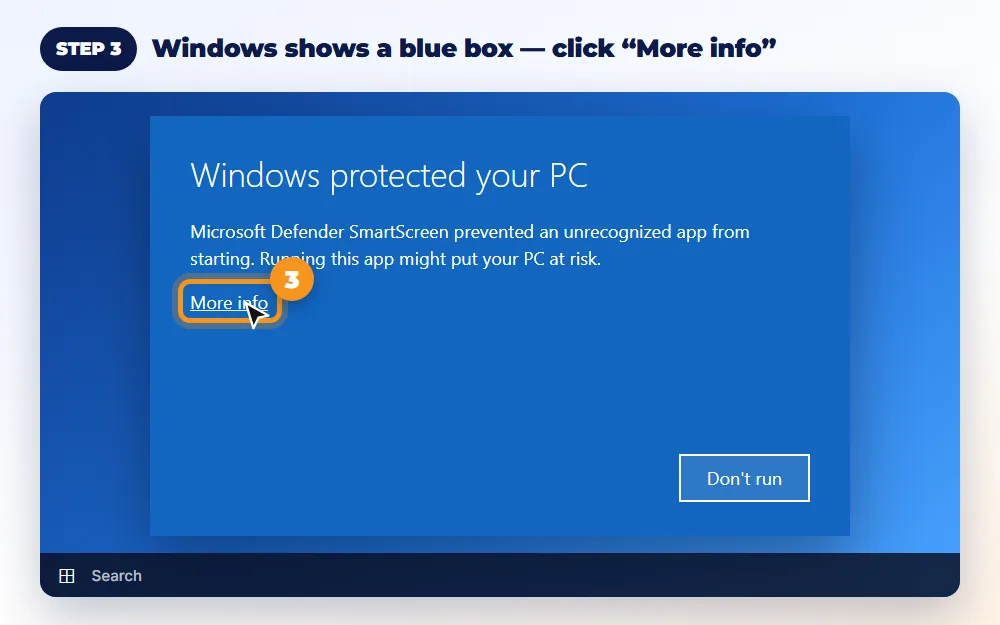
Windows shows “Windows protected your PC” for new apps it hasn't seen many times yet. This is normal. Click the small More info link.
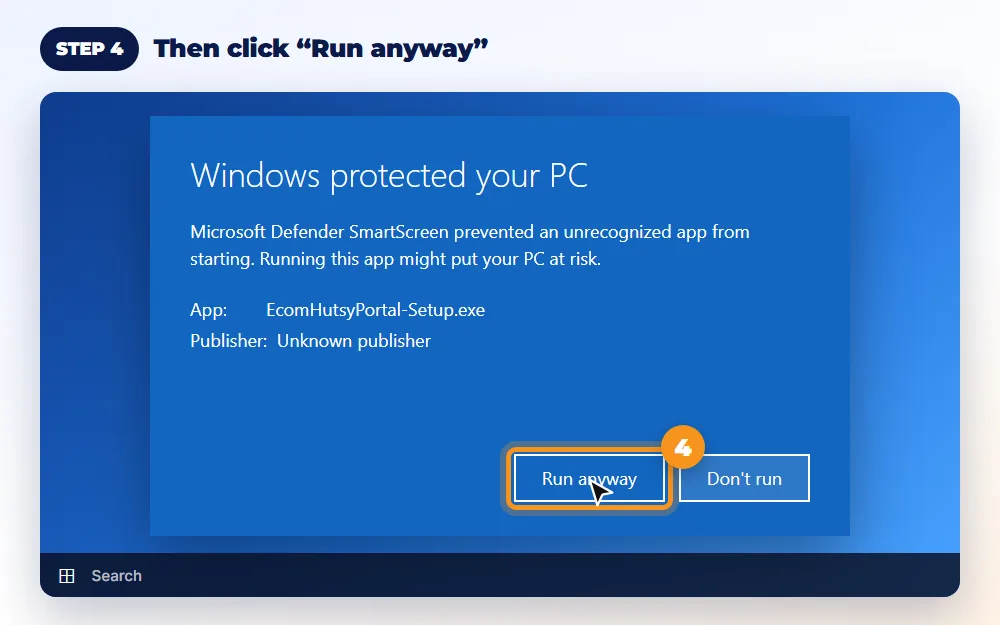
A Run anyway button appears at the bottom. Click it. The app is published by ECOMHUTSY and installs only for your Windows user.
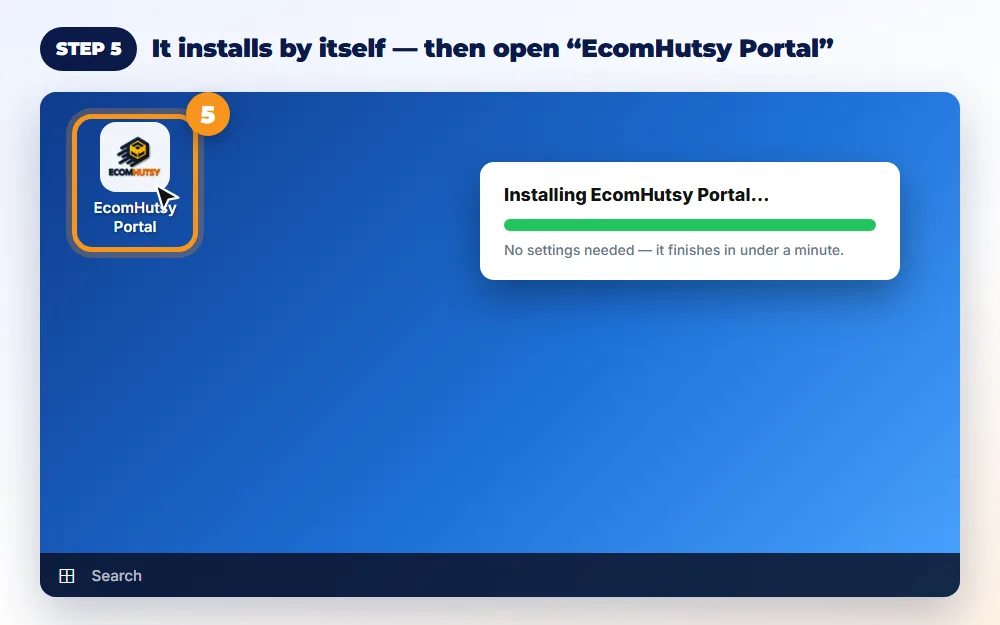
There are no settings to choose. In under a minute an EcomHutsy Portal icon appears on your desktop and in the Start menu. Open it.
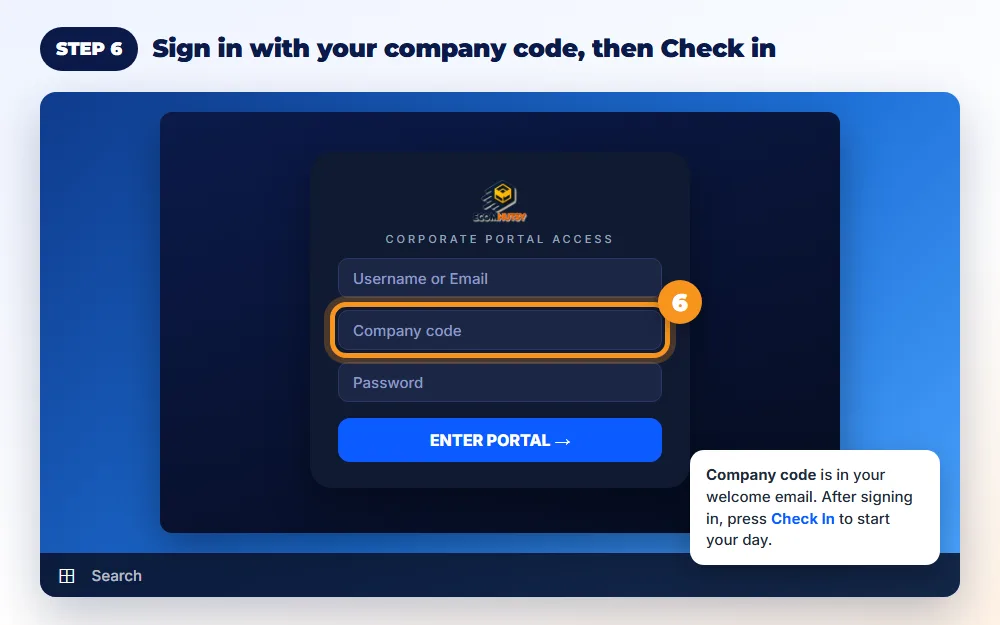
Enter your email, your company code (it's in your welcome email) and your password. After signing in, press Check In to start your day.
Yes. The blue SmartScreen box appears for newer apps that Windows hasn't seen on many computers yet. The installer comes only from portal.ecomhutsy.com.
Click More info first; the button only appears after that. On a company laptop, your IT team may need to allow the app.
The desktop app is Windows only for now. The portal itself works in any browser at portal.ecomhutsy.com.
The app updates itself. If it asks for an update, accept it — your login and settings stay the same.
Tell us what you are building. We will map the right product and service path.