Team Monitoring Employee Monitoring Software
Bring distributed work signals into a focused management experience designed for transparent policies, faster review and clearer team operations.
- Set team policy
- Connect people and projects
- Capture work signals
- Review reports
- Support better outcomes
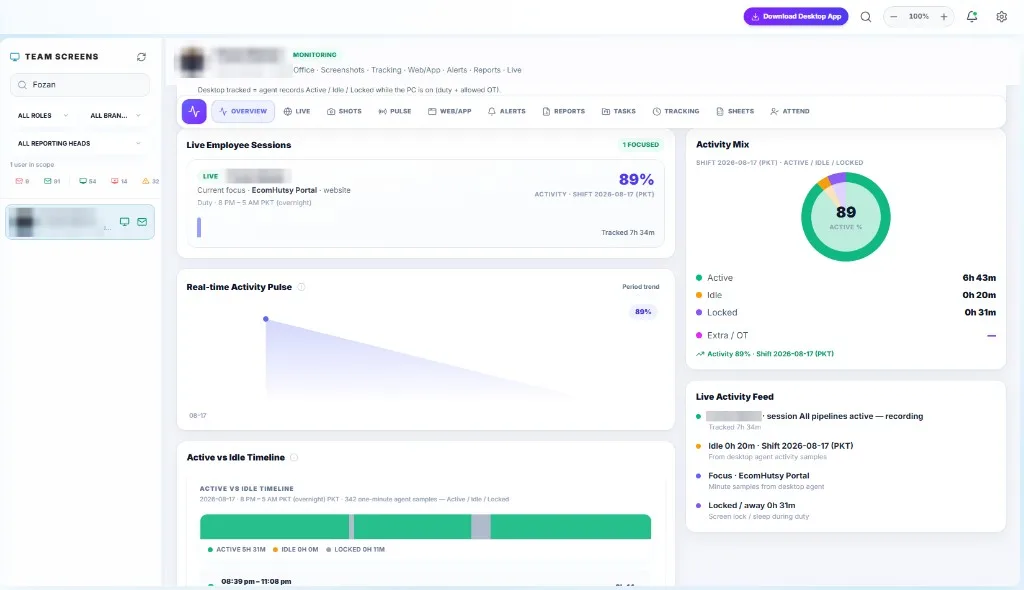
Live employee sessions 1 focused
Current focus · ECOMHUTSY Portal · website
Duty · 4 PM – 1 AM PKT (overnight)89%Activity · shift 2026-09-24 (PKT) · Tracked 7h 34mActivity mix
- Active6h 43m
- Idle0h 20m
- Locked0h 31m
Real-time activity pulse 89%
Live activity feed
Session · all pipelines active — recordingTracked 7h 34m
Idle 0h 20m · shift 2026-09-24 (PKT)From desktop agent activity samples
Focus · ECOMHUTSY PortalMinute samples from desktop agent
Locked / away 0h 31mScreen lock / sleep during duty
See the real portal in action.
A narrated tour of the real ECOMHUTSY portal: every Portal and Team Monitoring function with its benefit, including the optional check-in photo. Launch price: $3 per user per month, with a 1-month free trial.
ECOMHUTSY Team Monitoring is employee monitoring and time-tracking software for distributed teams, priced at $3 per user per month. It shows real-time activity, web and app usage, idle and locked time, screenshot capture at configured intervals, shift-level time tracking, timesheets, attendance, productivity reports, roles and permissions, and alerts. It is built by ECOMHUTSY, the e-commerce operator company founded in 2016.
| ECOMHUTSY Team Monitoring | |
|---|---|
| Price | $3 per user per month |
| Billing basis | Per active user |
| Activity | Real-time activity, idle detection, locked/away time |
| Evidence | Screenshot capture at configured intervals |
| Usage | Web and app monitoring |
| Time | Time tracking, timesheets, attendance |
| Management | Productivity reports, project and task tracking, roles and permissions, alerts |
| Platforms | Desktop app and web dashboard |
Powerful Features. Deep Insights.
Explore every capability in detail and see how each module connects.
Every capability grows from one product core.
Select any capability to open its workspace view below.
Real-time Activity
A live operational view brings active sessions, current work context and team signals into one focused screen.
Agent processOnline
Monitoring enabledYes
Duty windowActive now
Screenshots pipelineWorking
Activity pipelineWorking
From setup to decision-ready reporting.
Set up Team Monitoring in six steps.
Where to go and what to do, from signup to your first report.
- 01
Start your free trial
ecomhutsy.com/start
Choose how many users you need and pick your company code. Your team types this code when they sign in, and it can't be changed later. Add your company details and data policy, then create the Owner login (email and password) and add a card through Stripe. The first 30 days are free; billing starts automatically at $3 USD per user per month after the trial.
Start Your 1-Month Free Trial → - 02
Sign in as the Owner
portal.ecomhutsy.com
Your welcome email confirms your company code. On the sign-in page, enter your company code, your Owner email and the password you chose at signup.
- 03
Add your team
People → Staff Dossiers → Add user
Create a login for each person (one paid seat each). Access requests from your team appear under Pending, where you approve or reject them. Use Access Control to decide what each person can see.
- 04
Install the desktop app
Download link in your welcome email
Each person installs the ECOMHUTSY desktop app on their Windows work computer and signs in with the company code and their own email and password. The download link always gives the latest version, and the app updates itself. Updates never change your users, permissions or settings.
Download for Windows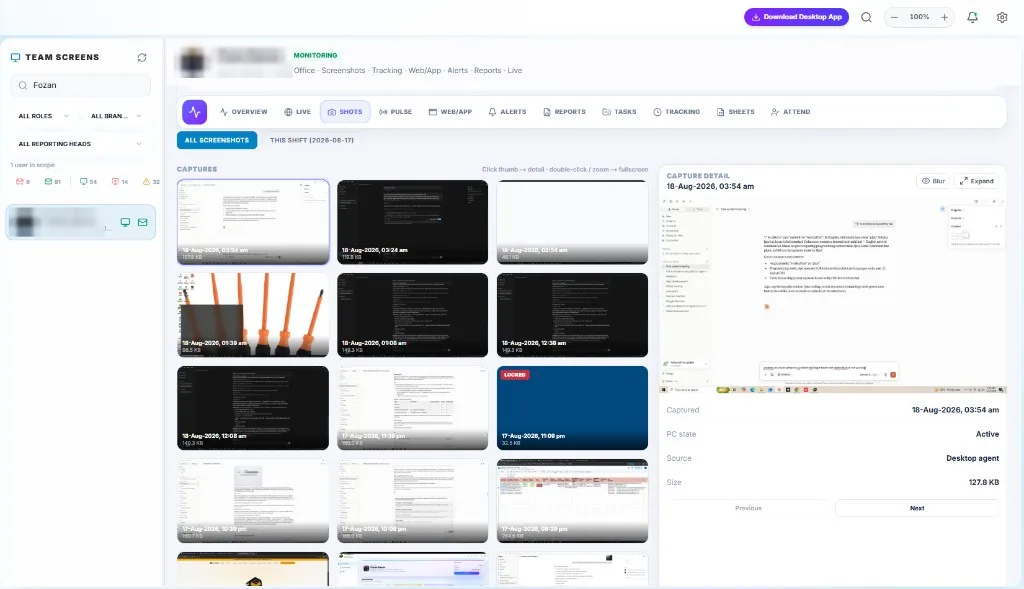
- 05
Check in to start the workday
Dashboard → Check In
Activity and screenshots are recorded only while a person is checked in, and they stop at check-out. Nothing is captured outside working time.
- 06
Review activity and screenshots
People → Team Monitoring
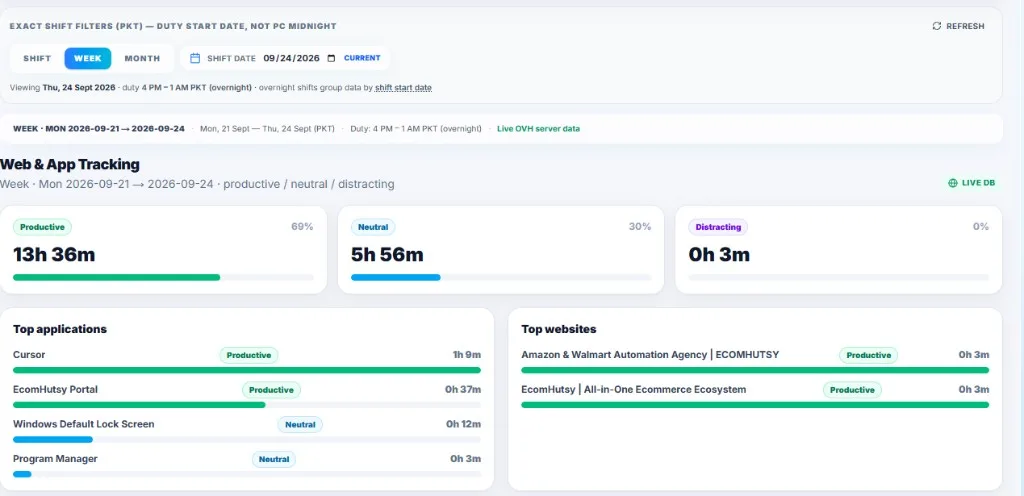
Choose a person to see their active, idle and locked time, the apps and websites they used, and their screenshots for the day, week or month.
Everything in your portal.
| To do this | Go to |
|---|---|
| Add, suspend or terminate a user | People → Staff Dossiers |
| Approve or reject an access request | People → Staff Dossiers → Pending |
| Set what each person can see | People → Staff Dossiers → Access Control |
| Screenshots, activity and app usage | People → Team Monitoring |
| Capture interval, selfie and hours per person | People → Team Monitoring → choose a person → Settings |
| Screenshot retention and chat delete | Settings → Data policy |
| Keep teams separate from each other | Settings → Team privacy |
| Card, invoices, seats and cancellation | Settings → Billing |
| Message your team | Chat |
| Share company news | Announcements |
Your policy, your choices.
Common questions while you set up.
Still stuck? Write to support@ecomhutsy.com or use live chat.
No screenshots are showing for a person+
Check that they are signed in to the desktop app, that they have checked in for the day, and that monitoring is switched on for them in Team Monitoring → Settings. Screenshots are taken at the interval you set, so the first one can take up to that long.
The status shows Idle or Locked+
Idle means no keyboard or mouse use for about 15 minutes or an empty desktop. Locked means the computer's lock screen is on. These are recorded as states, not as screenshots.
“Your plan is full” when adding a user+
Every active, pending or suspended user uses a seat. Terminate a user you no longer need, or add seats in Settings → Billing.
The team can't sign in+
Make sure they enter your company code exactly, plus their own email and password. If a payment fails, access pauses after 24 hours and returns automatically once the card is updated in Settings → Billing.
The selfie is missing+
Selfies only work when the selfie option is on for that person and the PC has a working camera. Without a camera, only the screenshot is saved.
The desktop app shows an old version+
The app updates itself on restart. You can also download the latest version from the link in your welcome email at any time.
Built around the surrounding operation.
Questions about Team Monitoring.
How much does Team Monitoring cost?+
$3 USD per user per month, billed monthly. Every new company starts with a 1-month (30-day) free trial.
Do I need a card for the free trial?+
Yes. Card required. Billing starts automatically at $3 USD/user/month after the 30-day trial. Cancel before the trial ends and you won't be charged.
Can I cancel any time?+
Yes. Go to Settings → Billing and choose cancellation. Your access continues until the end of the period you've paid for.
What happens if a payment fails?+
We email you after 12 hours and again after 18 hours. If the payment still fails after 24 hours, access pauses. It returns automatically as soon as the payment goes through.
Is my company's data kept separate?+
Yes. Each company's people, screenshots, chats and announcements are kept separate and are only visible inside that company.
How long are screenshots kept?+
You choose 3, 5, 7, 10 or 15 days. Older screenshots are deleted automatically. Screenshots are stored compressed to keep them fast to load.
Who can see screenshots?+
Only people you allow: the Owner, plus anyone you give monitoring access to in Access Control. Team members don't see each other's screenshots.
Does it capture outside working hours?+
No. Activity and screenshots are recorded only while a person is checked in, and stop at check-out.
Which computers are supported?+
The desktop app runs on Windows work computers. The portal itself works in any modern browser.
Do I need to tell my team?+
Yes. Team Monitoring is designed for transparent, fair use. Tell your team what is recorded and why before you start, as local law may require.
Can I change the number of users later?+
Yes. Add or remove seats in Settings → Billing. Changes are prorated on your next invoice.
Is there a live demo?+
Yes. Book a free live demo from the Contact page and we'll walk you through the portal.
Can teams use different monitoring settings?+
Yes. Capture interval, selfie and working hours are set per person, and Access Control decides what each role can see.
Can Team Monitoring take a photo at check-in?+
Yes, if a camera is connected and the selfie option is on for that person. The Windows desktop app can take a photo at check-in and check-out and attach one to each screenshot.
Continue through the ecosystem.

Ready to explore Team Monitoring?
Tell us what you are building. We will map the right product and service path.